
Die GoPro Quik app is an easy-to-use tool designed for quick and straightforward editing of your GoPro footage. While the app is no longer officially supported or available for download on Windows and Mac stores, this guide will show you how to download the last released version (12.18) and make the most of its features.
In this article, I’ll share:
- How to download GoPro Quik on both Mac und Windows.
- Step-by-step instructions on using Quik for importing, editing, and sharing.
- A detailed overview of Quik’s features and whether it’s the right app for you.
GoPro Quik Desktop Is Discontinued
GoPro has officially discontinued the Quik app for desktop less than a year after its relaunch. The Mac version will be removed from the App Store by December 31, and the promised Windows version will not be released.

Instead, GoPro is shifting its focus entirely to mobile editing solutions, with the Quik app for iOS and Android becoming the main editing platform. However, GoPro plans to release updated plug-ins for professional editing software like Adobe Premiere und After Effects for advanced users.
How to Download GoPro Quik (Last Version 12.18)
Even though GoPro Quik is no longer supported, you can still download the final version for your desktop. Keep in mind, any bugs or issues with this version won’t be addressed by GoPro.
- Download GoPro Quik for Mac or Windows: Use this link to get the app: Download GoPro Quik from Techspot.
GoPro Quik for Desktop: Step-by-Step Workflow
GoPro Quik makes video editing surprisingly easy and fun. Here’s a step-by-step look at how you can turn your footage into an awesome video:
1. Import Your GoPro Content
First things first, connect your GoPro to your computer using a USB cable. Quik does the hard work for you by automatically detecting your camera and importing all your photos and videos. It’s super convenient and saves you from manually dragging and dropping files.
2. Choose Highlights
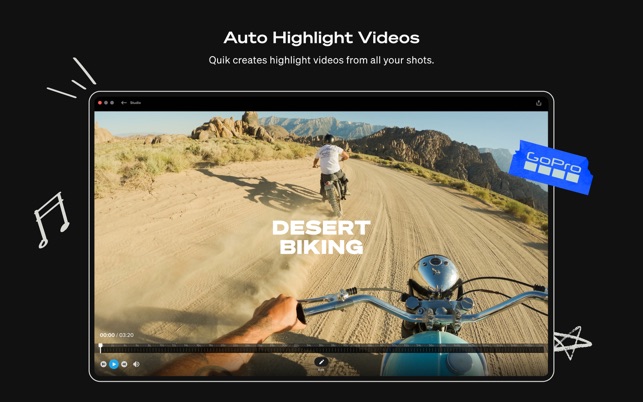
Once your content is imported, Quik shows you everything as easy-to-browse thumbnails. Just pick out your favorite moments—the epic jumps, stunning views, or those funny bloopers—and mark them as highlights. This makes it easy to focus on the best parts of your footage.
3. Edit Your Clips
Now it’s time to bring your story together. Quik lets you trim clips, adjust lengths, and rearrange your footage however you like. It’s perfect for turning hours of raw video into a quick, engaging highlight reel. No complicated tools, just simple and intuitive editing.
4. Add Soundtracks
What’s a great video without the right music? Quik has 10 built-in tracks to set the mood, or if you’re a subscriber, you can access a larger library of tunes. Whether you’re looking for something energetic for your action shots or chill vibes for scenic moments, you’ll find something that fits perfectly.

5. Export and Share
The last step is the most rewarding! Once your video is ready, save it and upload it directly to social media—Facebook, Instagram, YouTube, or wherever your audience hangs out. Quik makes sharing your adventures as easy as a few clicks.
GoPro Quik’s Pros
GoPro Quik is designed to make editing your action-packed footage easy and fun, offering a host of features tailored to both beginners and casual creators. Here’s an expanded look at its key capabilities:
1. Import Content Automatically
With GoPro Quik, importing your footage is effortless. Once you connect your GoPro to your desktop via USB, the app automatically detects the device and begins importing all your photos and videos. This feature saves time and ensures you never miss importing any content, making it ideal for organizing your GoPro footage after an adventure.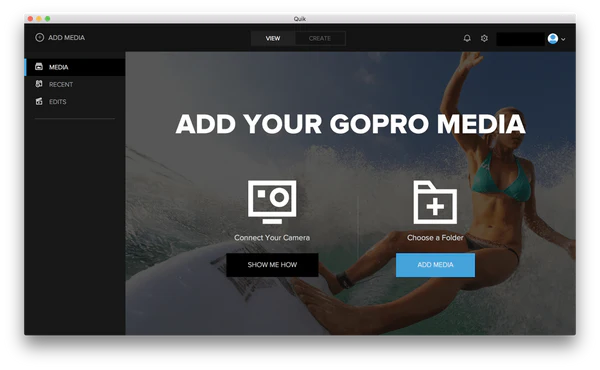
2. Basic Editing Tools
Quik offers a range of easy-to-use editing tools that let you:
- Trim videos to remove unnecessary parts.
- Select and compile highlights into a cohesive story.
- Create short clips with just a few clicks.
These features allow even those new to video editing to produce polished, shareable videos quickly.
3. Add Music
Enhance your videos with a soundtrack to match the mood. Quik provides 10 free tracks to choose from, and with a GoPro PLUS subscription, you gain access to an extensive library of additional soundtracks. Whether you’re editing a thrilling adventure or a serene landscape, you’ll find the right music to elevate your video.
4. Highlight Tags
Highlight Tags make it easy to pinpoint the best moments in your footage. By marking these highlights, you can quickly find and compile them into your final video. This feature is particularly useful for sifting through long clips from activities like biking, surfing, or hiking.
5. Share Directly
Once your video is ready, sharing it is seamless. You can upload your content directly to platforms like Facebook, Instagram, YouTube, and more from within the app. This saves time and lets you showcase your adventures with ease.
6. Add Gauges and Graphs
Quik’s data overlays bring your footage to life. You can include gauges and graphs that display metrics like:
- GPS path: Show the exact route you took during your activity.
- Geschwindigkeit: Highlight how fast you were going during certain moments.
- Elevation gain: Perfect for showcasing climbing or diving adventures.
These features add an extra layer of storytelling to your videos, making them more engaging and informative.
7. Device Updates
Keeping your GoPro gear up to date is vital for optimal performance. Quik allows you to update your GoPro devices, such as cameras, Karma grips, and remotes, ensuring you have access to the latest features and bug fixes.
Is the GoPro Quik App Right for You?
If you’re a professional looking for advanced features, Quik’s basic tools might fall short. For more robust editing capabilities, consider professional software like Adobe Premiere Pro oder Final Cut Pro.
The GoPro Quik app is a convenient tool for casual users and beginners but has its limitations for professionals. With the app no longer supported, exploring alternatives for advanced editing might be worth considering.
I hope that it was helpful in teaching you how to download GoPro Quik for desktop 🙂
Vergessen Sie nicht, diesen Artikel in den sozialen Medien mit Ihrer Familie und Ihren Freunden zu teilen.
Verwandte Artikel:
- 5 Best GoPro Hero 12 HDMI Cables
- GoPro Hero 12 as Webcam: Complete Guide for Windows/Mac
- GoPro Hero 12 Overheating? Try These Tips to Cool It Down
- GoPro HERO 12 Editing Software: Top Free and Paid Options


 DE
DE  EN
EN  IT
IT  ES
ES  PT
PT  NL
NL  FR
FR 