


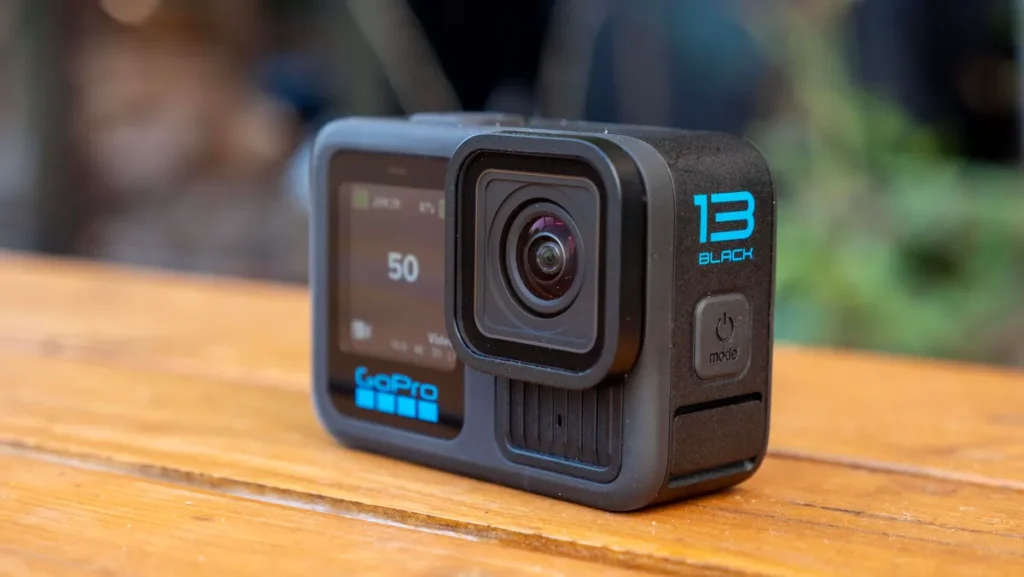
Ever wondered if you can turn your GoPro Hero 13 into a high-quality webcam? The answer is yes! And it works incredibly well.
With just a few essential accessories and the right software, your GoPro can deliver professional-looking video quality for live streams, video calls, and content creation.
In this guide, I’ll walk you through the entire process of setting up your GoPro Hero 13 as a webcam, whether you’re using a Mac or Windows PC.
Plus, I’ll answer the most frequently asked questions to help you get the most out of your setup.
Accessories You Need to Use Your GoPro Hero 13 as a Webcam
Before you begin, you’ll need a few basic accessories to get started.
1. USB-C Cable
Your GoPro Hero 13 connects to your computer via a USB-C cable, which provides both power and data transfer. The cable included with your GoPro will work, but if you need an alternative, make sure it supports USB 3.0 speeds for smooth video transmission.
If your computer has a USB-A port, you’ll need a USB-C to USB-A cable.
If your computer has a USB-C port, a USB-C to USB-C cable will do the job.

2. A Sturdy Mount or Tripod
Positioning your GoPro at the right height and angle is important for professional-looking video.
Popular mounting options include:
- Tripods – Great for stable placement on desks.
- Suction Cup Mounts – Stick to a smooth surface like a desk or window.
- Magnetic Swivel Clip – Clip onto a laptop or monitor for eye-level placement.


- Easy to use flexible tripod for action video cameras like GoPro HERO6 Black, GoPro...
- Quick Set-ups: Comes with two quick-release clips–Mount for GoPro and the standard...
- Precise control with integrated ballhead Quickly orient your action camera with 90°...
3. GoPro Webcam Utility (Software)
To use your GoPro Hero 13 as a webcam, you need to install the GoPro Webcam Utility. This software acts as the bridge between your camera and your computer.
- Mac users can download it from GoPro’s official site.
- Windows users will also need to install the Webcam Utility before proceeding.
More tips for mac users:
Setting Up GoPro Hero 13 as a Webcam (Windows Guide)

For Windows users, the process is nearly identical:
Step 1: Update Your GoPro Hero 13
Make sure your GoPro is running the latest firmware version to prevent compatibility issues.
Step 2: Install the GoPro Webcam Utility
Scarica il GoPro Webcam Utility for Windows 10/11 and install it on your PC.
Step 3: Connect Your GoPro to Your Windows PC
- Turn on your GoPro Hero 13.
- Plug it into your computer using a USB-C cable.
- The camera will enter USB mode automatically.
Step 4: Preview and Adjust Webcam Feed
- Right-click the GoPro icon in your system tray.
- Select “Show Preview” to adjust framing before streaming.
- Modify Campo visivo (FOV) for a Wide, Linear, or Narrow look.
Step 5: Choose GoPro as Your Webcam
- Open Zoom, Skype, or OBS Studio.
- In the settings, select “GoPro Camera” as your webcam.
More tips for Windows users:
Setting Up GoPro Hero 13 as a Webcam (Mac Guide)
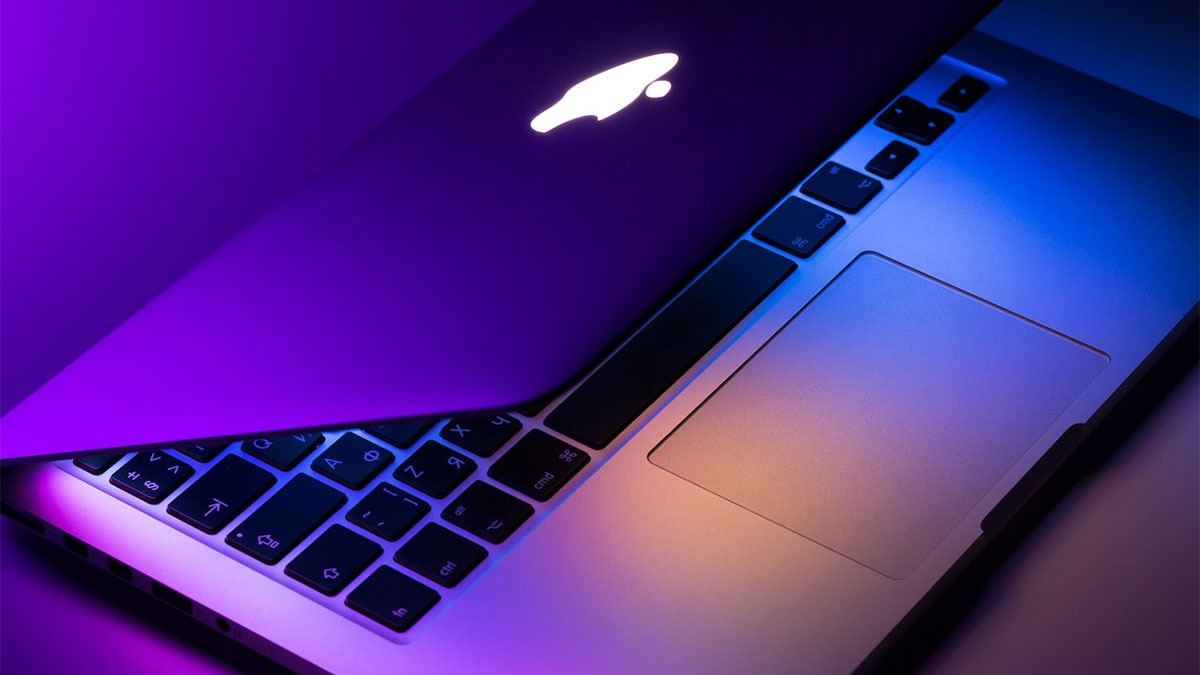
If you’re on a Mac, follow these simple steps:
Step 1: Update Your GoPro Hero 13
Before setting up your webcam, make sure your camera firmware is up to date to avoid connectivity issues.
Step 2: Install the GoPro Webcam Utility
Download and install the GoPro Webcam Utility for macOS (requires macOS 10.14 or later).
Step 3: Connect Your GoPro to Your Mac
- Power on your GoPro Hero 13.
- Connect it to your Mac using a USB-C cable.
- Once connected, you should see a blue dot appear on the GoPro icon in your Mac’s menu bar, indicating a successful connection.
Step 4: Preview and Adjust Settings
Fare clic sul pulsante GoPro icon in your menu bar and select “Show Preview” to check your framing before going live.
- Adjust Campo visivo (FOV) to choose between Wide, Narrow, or Linear. Learn more about GoPro FOV>>>
- Use the “Mirror” or “Flip” option to fine-tune the image.
Step 5: Select GoPro as Your Webcam
In any video conferencing app (Zoom, Skype, Google Meet, etc.), select “GoPro Camera” as your webcam source. A red dot on the GoPro icon means your camera is live.
Common Questions About Using GoPro Hero 13 as a Webcam
1. Can I live stream with my GoPro Hero 13?
Yes! Use OBS Studio or YouTube Live to stream directly from your GoPro.
2. How can I improve video quality when using GoPro Hero 13 as a webcam?
- Use good lighting—natural light or a ring light works best.
- Adjust the Campo visivo (FOV) a Linear for a natural webcam look.
- Keep the lens clean to avoid blurriness.
- Mount your GoPro on a tripod for stability.
3. Why isn’t my GoPro Hero 13 recognized as a webcam?
Try these troubleshooting steps:
- Reconnect the Cavo USB and restart your GoPro.
- Ensure GoPro Connect mode is enabled under Preferences > Connections.
- Try a different USB port or cable.
- Restart both your GoPro and computer.
4. Can I use GoPro Hero 13 wirelessly as a webcam?
No, the webcam mode only works via USB-C connection. Wireless webcam streaming is not supported.
5. Can I use my GoPro Hero 13 as a webcam for multiple applications at once?
No, GoPro Hero 13 can only be used in one app at a time. Close other apps to avoid conflicts.
6. What resolution does the GoPro Hero 13 stream at?
GoPro streams at 1080p or 720p at 30fps, which is standard for video calls.
7. What video conferencing apps support GoPro Hero 13 as a webcam?
Your GoPro works with:
- Zoom
- Skype
- Google Meet
- Microsoft Teams
- OBS Studio
- YouTube Live
- Twitch
- Slack
- Webex
Is the GoPro Hero 13 a Good Webcam?
If you’re looking for a webcam with exceptional video quality, your GoPro Hero 13 is a fantastic choice.
It’s great for:
- Streaming in high quality on platforms like Twitch and YouTube.
- Video calls and virtual meetings with a wide-angle perspective.
- Recording professional-looking content with stabilized footage.
Just keep in mind that GoPro’s built-in mic isn’t the best, so pairing it with an external microphone can improve audio quality.
Grazie per aver letto questa guida!
I hope that it was helpful in teaching you everything you need to know about how to use your GoPro as webcam 🙂
Non dimenticate di condividere questo articolo sui social media con la vostra famiglia e i vostri amici.
Articoli correlati:
- Durata della batteria della GoPro Hero 11 Mini: per quanto tempo è possibile registrare?
- GoPro Hero 11 vs 10 vs 9: quale scegliere?
- I 7 migliori SD Card per GoPro Hero 11