


GoPro to OBS: What You’ll Need
In this section, you’ll find what gear would you need depending on the GoPro model you have:
For GoPro Hero 13, 12, 11, 10, 9 & 8 Black
To use these newer models as webcams, you’ll need the following:
USB-C cable
The included cable works fine, but for extra durability, consider an upgraded cable like the Anker Powerline+ USB-C cable. Its reinforced design resists wear and tear, ensuring long-term reliability.
Não foram encontrados produtos.
A tripod or mounting option
Stability is crucial for webcam use. A versatile tripod, like the JOBY GorillaPod Action Tripod, lets you position your GoPro at the perfect angle for calls or streaming.
Não foram encontrados produtos.
Updated firmware
Keeping your GoPro firmware up-to-date ensures compatibility with the webcam utility and optimal performance.
For Older GoPros (Hero 7, 6, 5 & 4 Black)
Older models require additional gear to function as webcams:
HDMI-to-Micro HDMI cable
O UGREEN Micro HDMI to HDMI Cable supports high-speed data transfer, making it ideal for streaming high-quality video.
Não foram encontrados produtos.
HDMI-to-USB video converter
Devices like the Elgato Cam Link 4K allow you to connect your GoPro’s HDMI output to your computer via USB.
Não foram encontrados produtos.
Mounting gear
Options like the Suptig Jaws Flex Clamp provide flexible positioning for creative angles.
Não foram encontrados produtos.
Power source
Ensure your GoPro stays powered during use by connecting it to a reliable power source.
Step-by-Step Guide for GoPro Webcam Setup
Here you’ll find easy steps you’l need to follow:
For Hero 13, 12, 11, 10, 9 & 8 Black
Update Firmware
- Visit the GoPro website and download the latest firmware for your model.
- Save the file to your computer and transfer it to your GoPro via the microSD card.
- Restart your camera to complete the update. Keeping your firmware updated ensures smooth performance and compatibility with the webcam utility.
Install the GoPro Webcam Utility
Download and install the GoPro Webcam desktop utility for your computer. This tool allows your GoPro to function seamlessly as a webcam.
Connect Your GoPro

Use a USB-C cable to connect your camera to your computer. Once connected, the GoPro Webcam utility will detect the camera, and the GoPro will automatically switch to Webcam Mode.
Mount Your GoPro
Position your camera using a sturdy tripod or clip mount. For example, the Magnetic Swivel Clip allows you to attach the GoPro to your monitor or other metal surfaces for convenient placement.
Não foram encontrados produtos.
Adjust Settings
Open the GoPro Webcam utility to preview your camera feed. Adjust resolution (default is 1080p/30fps), field of view (Wide, Linear, or Narrow), and orientation (mirror or flip) to suit your setup.
For Older Models (Hero 7, 6, 5 & 4 Black)
Prepare Your Camera
Turn on your GoPro, navigate to Preferences > Input/Output > HDMI Output, and set it to “Live.”
Set Up the Hardware
Connect your GoPro to a video capture device using an HDMI-to-Micro HDMI cable. Plug the capture device into your computer via USB.
Mount your GoPro securely using options like the GoPro Suction Cup Mount for unique angles.
Não foram encontrados produtos.
Launch OBS Studio
Open OBS Studio or your preferred video software. Add your GoPro as a video capture device to start streaming or recording.
Setting Up for Live Streaming with OBS Studio
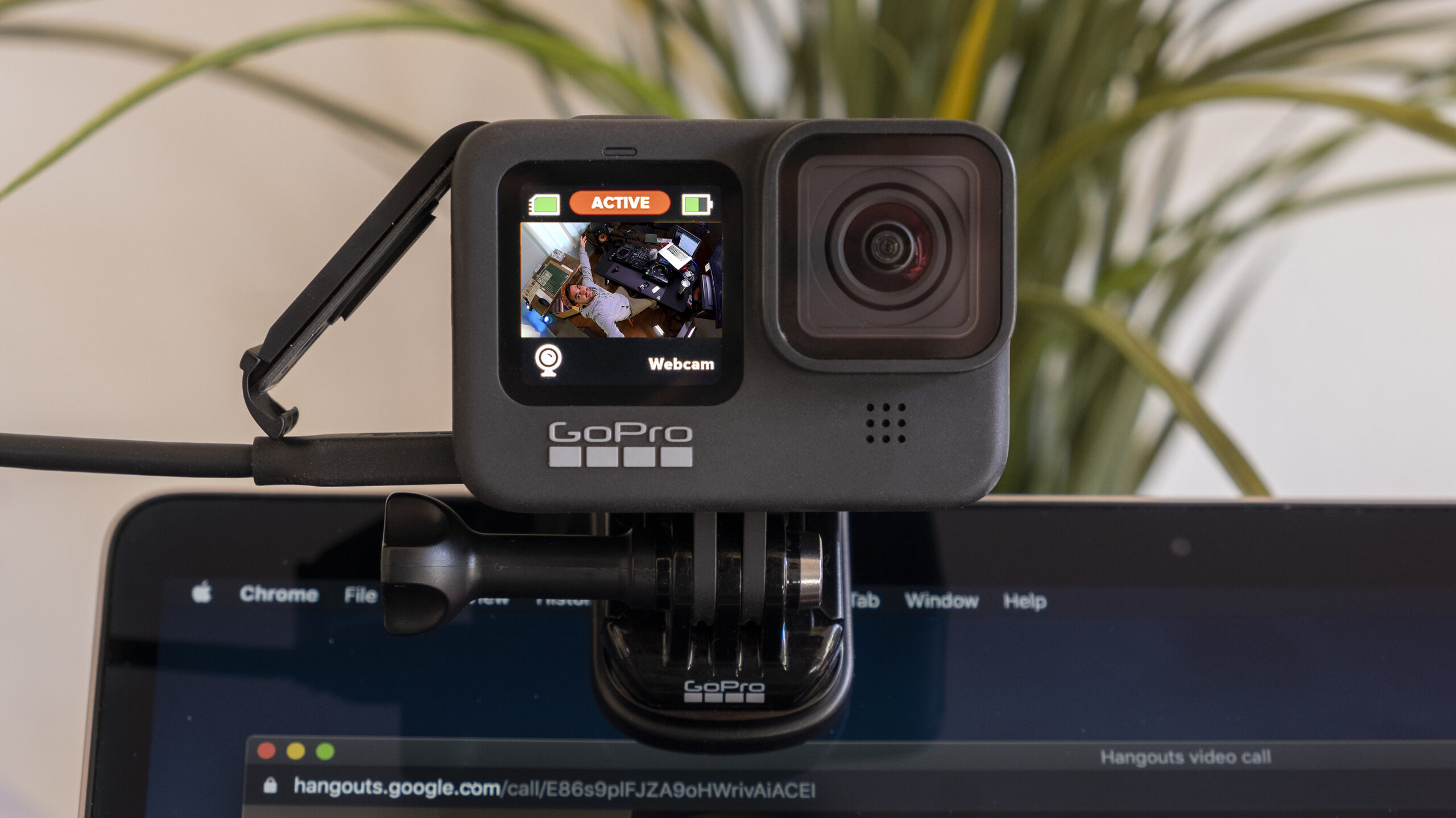
To use your GoPro for live streaming via OBS:
- Open OBS Studio and select “+” in the Video Source menu.
- Add a new video capture device and name it.
- Select your GoPro from the dropdown menu.
- Adjust settings like resolution, frame rate, and field of view.
- Begin your stream on platforms like YouTube, Twitch, or Facebook.
Tips for Cord-Free Live Streaming
For a wireless experience, newer GoPro models (Hero 9 Black and later) offer direct live streaming to:
- GoPro.com: With a GoPro subscription, you can stream seamlessly to your account.
- Twitch, YouTube, and Facebook: Stream directly without the need for additional gear, making it ideal for outdoor adventures or impromptu broadcasts.
Why GoPro Live Streaming Stands Out
- High-quality visuals: Achieve crisp 1080p/60fps streams.
- Wide compatibility: Works seamlessly with popular platforms and devices.
- Flexibility: Offers both wired and wireless options for different scenarios.
Obrigado por ler este guia!
I hope that it was helpful in teaching you everything you need to know about how to turn your GoPro to OBS 🙂
Não se esqueça de partilhar este artigo nas redes sociais com a sua família e amigos.
Artigos relacionados:
- Duração da bateria da GoPro Hero 11 Mini: Quanto tempo pode gravar?
- GoPro Hero 11 vs 10 vs 9: Qual escolher?
- Top 7 Melhores SD Cards para o GoPro Hero 11