
GoPro to OBS: What You’ll Need
In this section, you’ll find what gear would you need depending on the GoPro model you have:
For GoPro Hero 13, 12, 11, 10, 9 & 8 Black
To use these newer models as webcams, you’ll need the following:
USB-C cable
The included cable works fine, but for extra durability, consider an upgraded cable like the Anker Powerline+ USB-C cable. Its reinforced design resists wear and tear, ensuring long-term reliability.
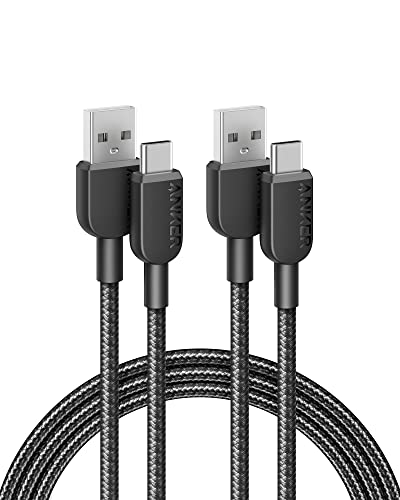
- The Anker Advantage: Join the 80 million+ powered by our leading technology.
- Reliable Charging: USB-IF compliant for safe, reliable charging for virtually any...
- Built to Last: Proven in strict laboratory tests to withstand up to 10,000 bends.
A tripod or mounting option
Stability is crucial for webcam use. A versatile tripod, like the JOBY GorillaPod Action Tripod, lets you position your GoPro at the perfect angle for calls or streaming.

- Easy to use flexible tripod for action video cameras like GoPro HERO6 Black, GoPro...
- Quick Set-ups: Comes with two quick-release clips–Mount for GoPro and the standard...
- Precise control with integrated ballhead Quickly orient your action camera with 90°...
Updated firmware
Keeping your GoPro firmware up-to-date ensures compatibility with the webcam utility and optimal performance.
For Older GoPros (Hero 7, 6, 5 & 4 Black)
Older models require additional gear to function as webcams:
HDMI-to-Micro HDMI cable
Les UGREEN Micro HDMI to HDMI Cable supports high-speed data transfer, making it ideal for streaming high-quality video.

- 4K Micro HDMI to HDMI Cable: UGREEN micro HDMI cable supports 4K, 2K, 1080P Full HD...
- Bi-Directional: This micro cable supports HDMI Micro to HDMI & HDMI to Micro HDMI. It...
- Textured and High-quality Materials: Featuring gold-plated connectors, copper...
HDMI-to-USB video converter
Devices like the Elgato Cam Link 4K allow you to connect your GoPro’s HDMI output to your computer via USB.

- Professional Webcam: easily connect your DSLR; camcorder or action cam to your PC or...
- Stunning Quality: broadcast live or record in 1080p60 or even up to 4K at 30 fps.
- Ultra-Low Latency Technology: go live on any platform in no time.
Mounting gear
Options like the Suptig Jaws Flex Clamp provide flexible positioning for creative angles.

- Compatible with Gopro Hero 13, Hero 12, Hero 11, Hero 10, Hero 9, Hero8, Hero7,...
- Adjustable Gooseneck:Adjustable gooseneck easy to adjust your camera angle, Make...
- High quality: Made of special materials to make the product stronger and more durable
Power source
Ensure your GoPro stays powered during use by connecting it to a reliable power source.
Step-by-Step Guide for GoPro Webcam Setup
Here you’ll find easy steps you’l need to follow:
For Hero 13, 12, 11, 10, 9 & 8 Black
Update Firmware
- Visit the GoPro website and download the latest firmware for your model.
- Save the file to your computer and transfer it to your GoPro via the microSD card.
- Restart your camera to complete the update. Keeping your firmware updated ensures smooth performance and compatibility with the webcam utility.
Install the GoPro Webcam Utility
Download and install the GoPro Webcam desktop utility for your computer. This tool allows your GoPro to function seamlessly as a webcam.
Connect Your GoPro

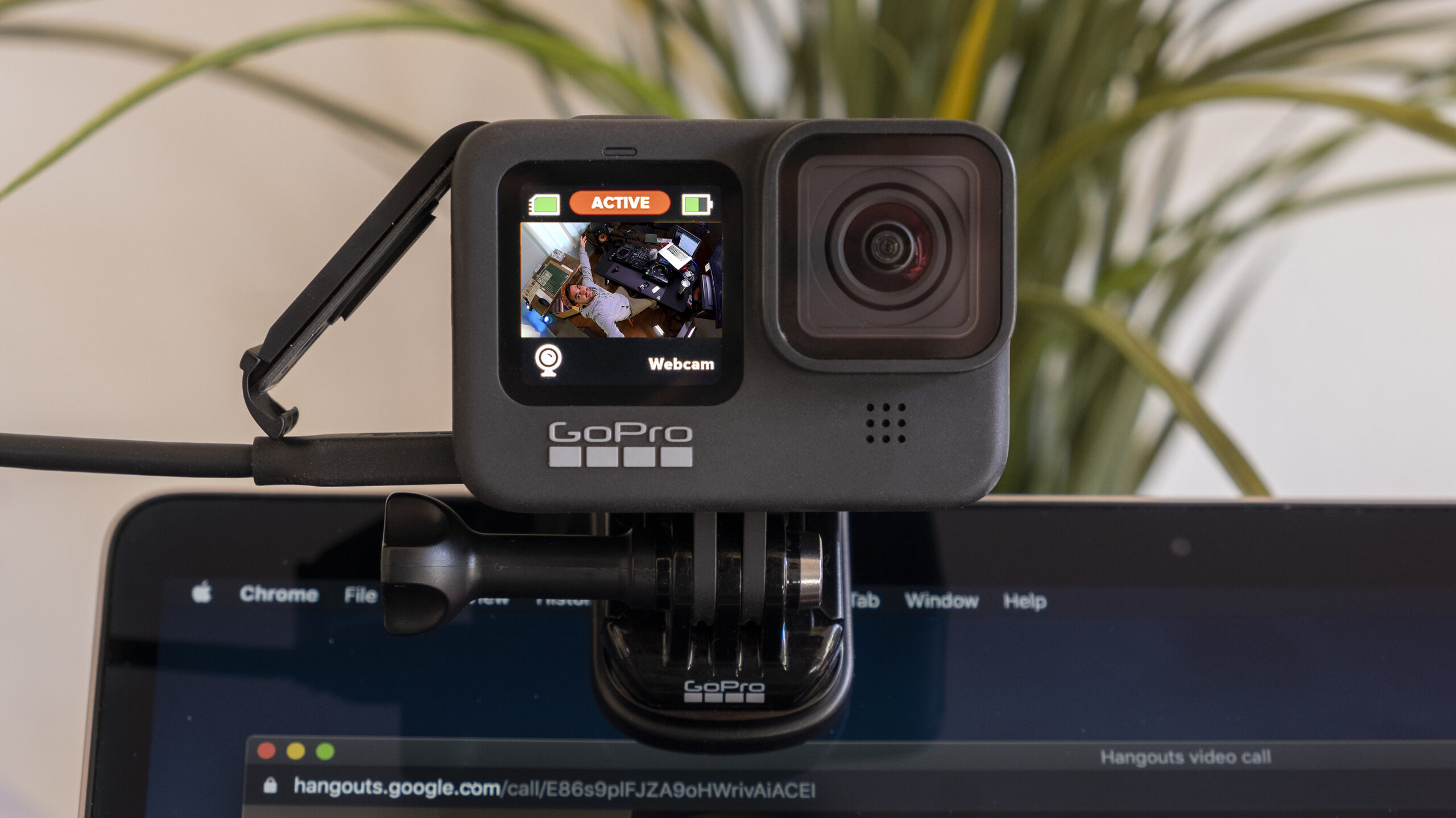
Use a USB-C cable to connect your camera to your computer. Once connected, the GoPro Webcam utility will detect the camera, and the GoPro will automatically switch to Webcam Mode.
Mount Your GoPro
Position your camera using a sturdy tripod or clip mount. For example, the Magnetic Swivel Clip allows you to attach the GoPro to your monitor or other metal surfaces for convenient placement.

- Easily clip your GoPro to backpack strap, furniture and more to capture unique...
- Built-in magnet sticks to metal objects-like appliances or gym equipment-to give you...
- 360 swivel lets you turn the camera to frame the perfect shot
Adjust Settings
Open the GoPro Webcam utility to preview your camera feed. Adjust resolution (default is 1080p/30fps), field of view (Wide, Linear, or Narrow), and orientation (mirror or flip) to suit your setup.
For Older Models (Hero 7, 6, 5 & 4 Black)
Prepare Your Camera
Turn on your GoPro, navigate to Preferences > Input/Output > HDMI Output, and set it to “Live.”
Set Up the Hardware
Connect your GoPro to a video capture device using an HDMI-to-Micro HDMI cable. Plug the capture device into your computer via USB.
Mount your GoPro securely using options like the GoPro Suction Cup Mount for unique angles.

- Attach your GoPro to cars, boats, motorcycles and more
- Industrial strength suction cup proven at speeds of 150+ mph
- Engineered to provide a broad range of motion and stability
Launch OBS Studio
Open OBS Studio or your preferred video software. Add your GoPro as a video capture device to start streaming or recording.
Setting Up for Live Streaming with OBS Studio
To use your GoPro for live streaming via OBS:
- Open OBS Studio and select “+” in the Video Source menu.
- Add a new video capture device and name it.
- Select your GoPro from the dropdown menu.
- Adjust settings like resolution, frame rate, and field of view.
- Begin your stream on platforms like YouTube, Twitch, or Facebook.
Tips for Cord-Free Live Streaming
For a wireless experience, newer GoPro models (Hero 9 Black and later) offer direct live streaming to:
- GoPro.com: With a GoPro subscription, you can stream seamlessly to your account.
- Twitch, YouTube, and Facebook: Stream directly without the need for additional gear, making it ideal for outdoor adventures or impromptu broadcasts.
Why GoPro Live Streaming Stands Out
- High-quality visuals: Achieve crisp 1080p/60fps streams.
- Wide compatibility: Works seamlessly with popular platforms and devices.
- Flexibility: Offers both wired and wireless options for different scenarios.
Merci d'avoir lu ce guide !
I hope that it was helpful in teaching you everything you need to know about how to turn your GoPro to OBS 🙂
N'oubliez pas de partager cet article avec votre famille et vos amis sur les médias sociaux.
Articles connexes :
- Durée de vie de la batterie de la GoPro Hero 11 Mini : Combien de temps pouvez-vous enregistrer ?
- GoPro Hero 11 vs 10 vs 9 : lequel choisir ?
- Les 7 meilleurs SD Card pour GoPro Hero 11


 FR
FR  EN
EN  IT
IT  DE
DE  ES
ES  PT
PT  NL
NL 